NANOSQUID

NANOSQUID

Privacy-first camera software for Mac

NANOSQUID makes focused, privacy-first Mac software. Xamera improves how your camera looks and behaves in video calls, streams, and recordings while keeping effects processing on your Mac.

Xamera app iconFeatured product

Xamera Camera

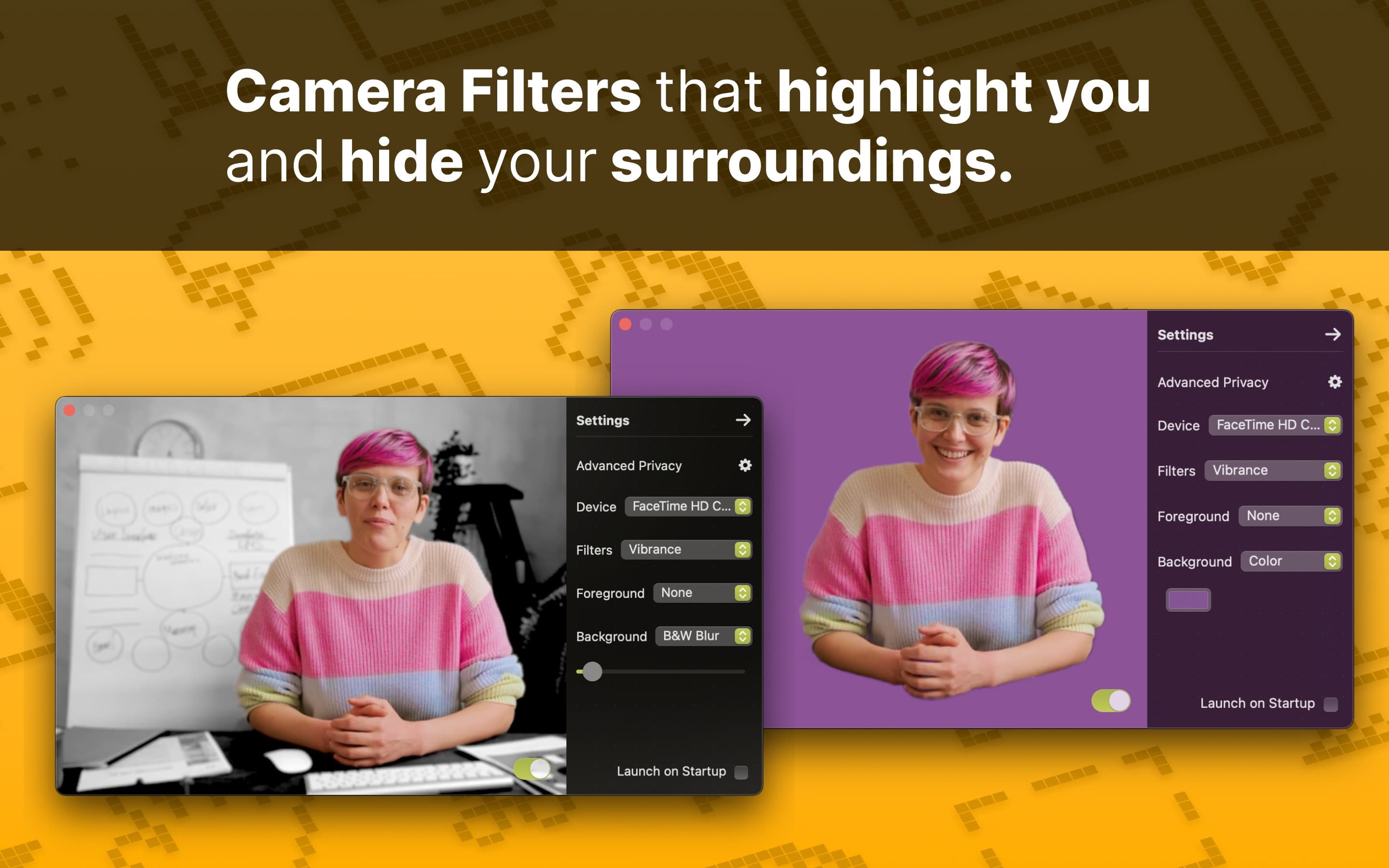
Add real-time beauty filters, full-frame camera looks, background effects, image controls, and privacy tools to FaceTime, Zoom, Google Meet, Microsoft Teams, and OBS.

  • Face Studio beauty filters
  • Background blur and replacement
  • Color and image controls
  • Face blur and privacy controls
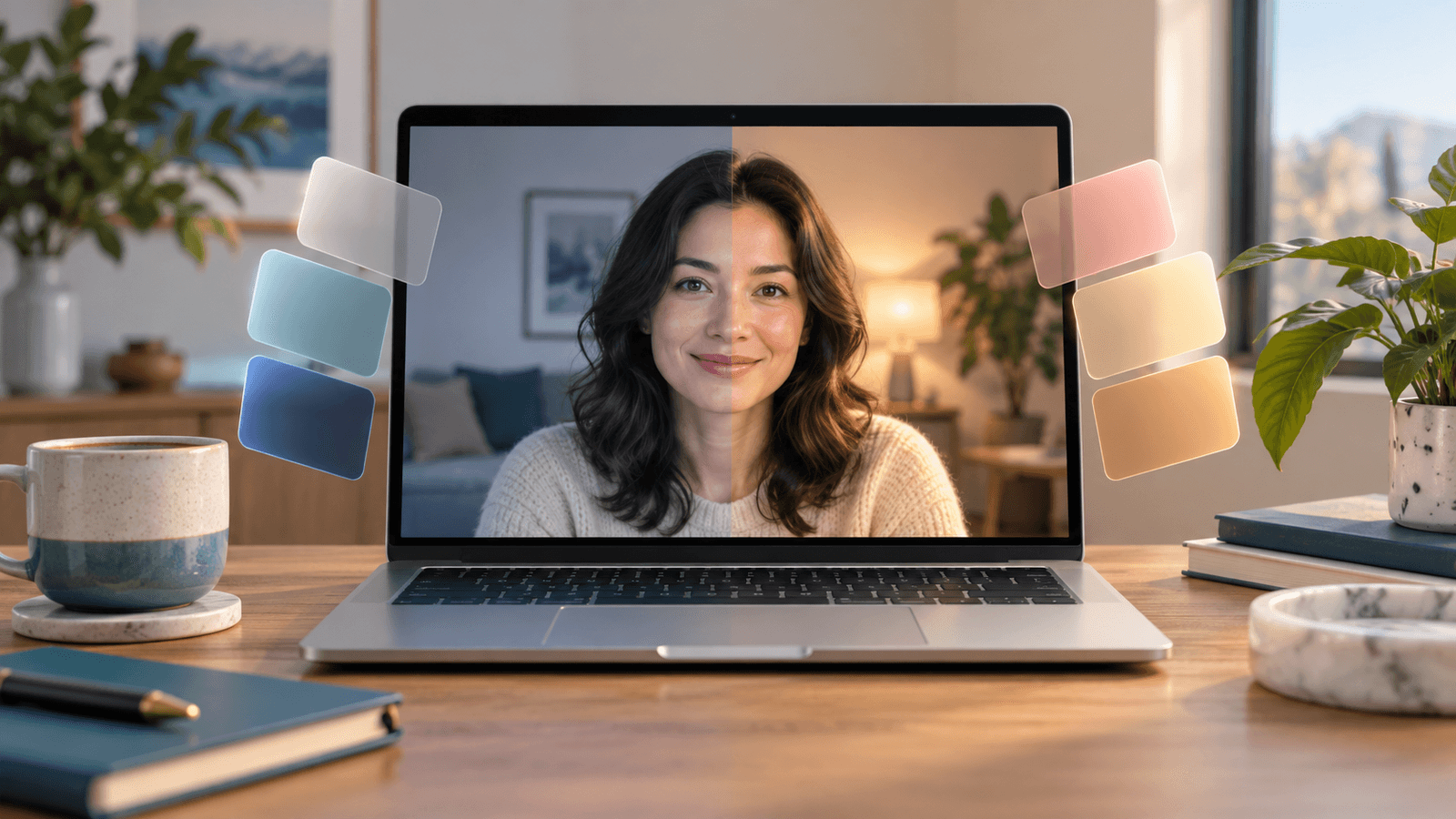
BeforeAfter
Drag the divider to compare the same shot before and after Xamera's beauty filters.

Xamera Face Studio

Beauty filters for Mac video calls

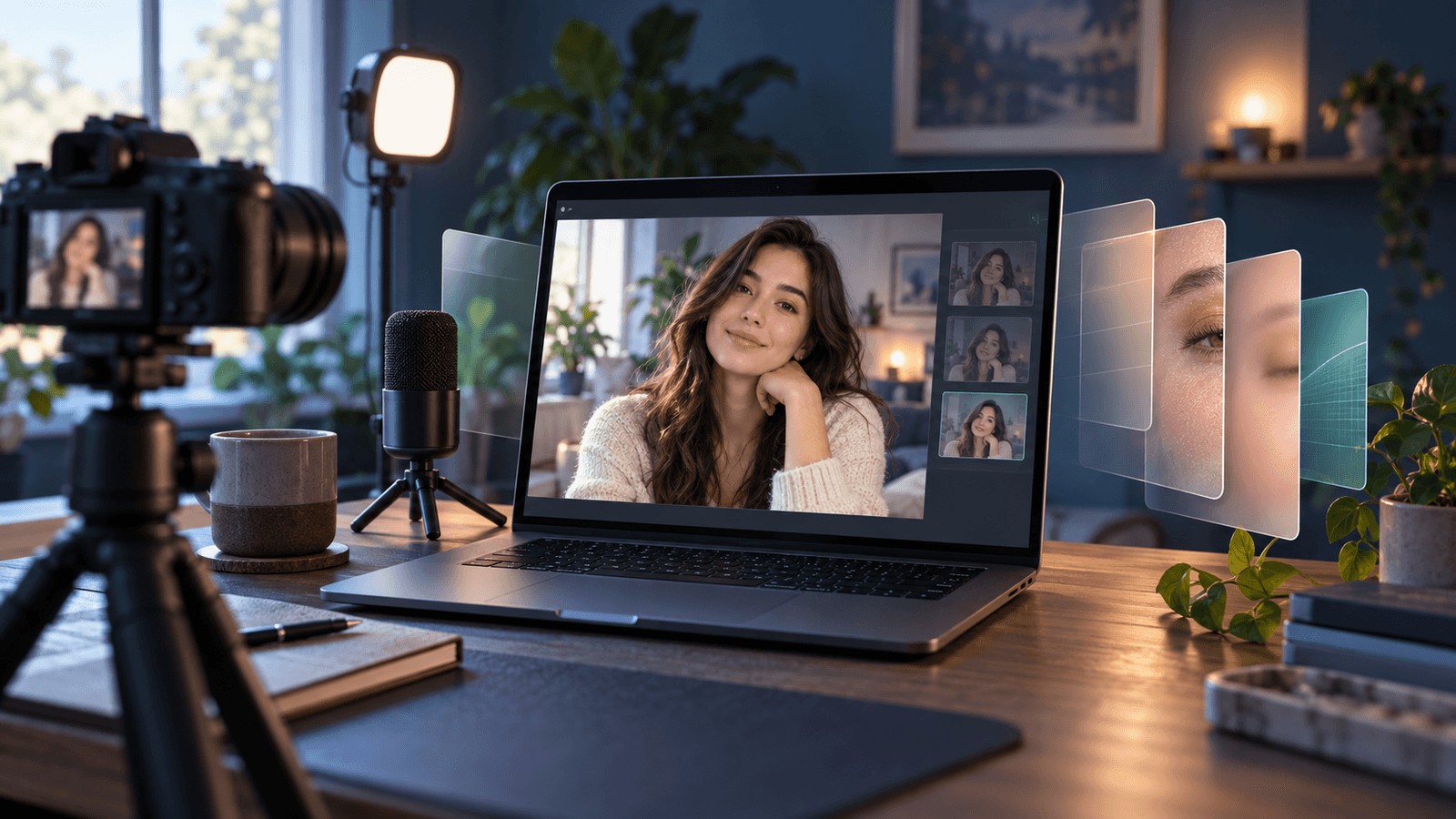
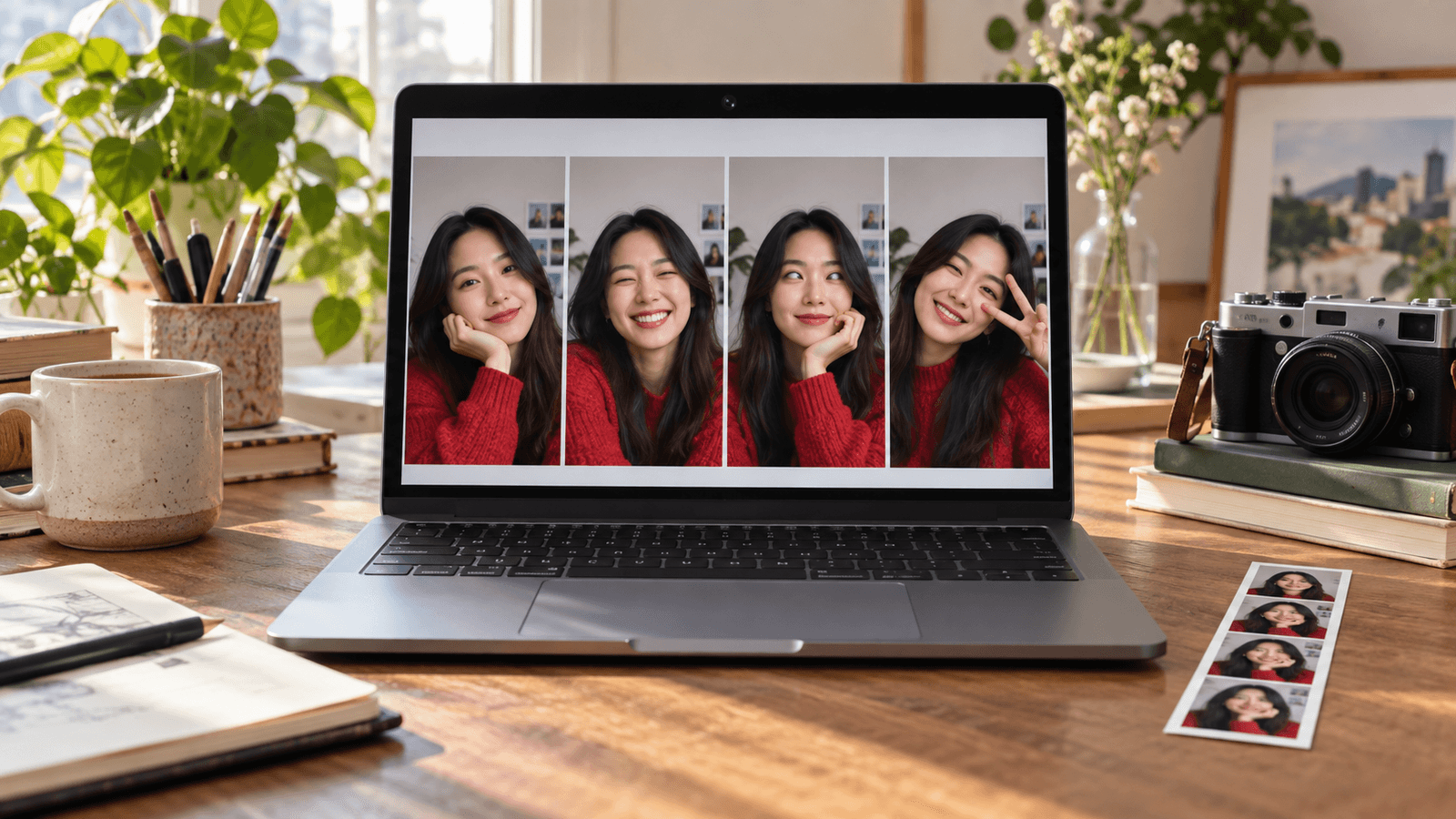
Face Studio is Xamera's flagship beauty-filter feature. It gives you separate real-time controls, so adjustments can stay subtle and specific instead of relying on one generic webcam touch-up switch.

Skin smoothing
Teeth whitening
Face shape
Eyes
Nose
Lips
Learn about Face Studio in Xamera

Designed around privacy

Xamera processes its camera effects locally on your Mac. Your camera frames stay on your device rather than being uploaded for effects processing. More details are documented in the privacy policy.

Privacy Policy

Product boundaries

  • Xamera requires Apple silicon and macOS 15.5 or later.
  • Xamera needs a destination app that allows camera selection.
  • Filter and privacy-effect results should be reviewed before an important call or stream.

Frequently asked questions

What does NANOSQUID make?

NANOSQUID builds privacy-focused Mac software. Its featured app, Xamera, enhances a live camera feed for video calls, streaming, and recording.

Which conferencing and streaming apps support Xamera?

Xamera works with FaceTime, Google Meet, Zoom, Microsoft Teams, and OBS. The destination app must let you choose a camera source.

Can Xamera add beauty filters to FaceTime?

Yes. Xamera's Face Studio provides real-time controls for skin smoothing, teeth whitening, face shape, eyes, nose, and lips. Select Xamera from FaceTime's Video menu after completing the camera-extension setup.

Does Xamera replace Apple's built-in FaceTime effects?

Not necessarily. Apple's effects are a good first choice for Portrait blur, Studio Light, Center Stage, reactions, and supported backgrounds. Xamera adds beauty filters, full-frame looks, detailed image controls, and privacy effects for supported conferencing and streaming apps.

What does Xamera require?

Xamera requires an Apple-silicon Mac (M1 or later) running macOS 15.5 or later. The destination app must allow you to choose a camera source.

Guides

Camera and video help for Mac

Where Is the Camera App on a Mac? How to Open and Use Your Webcam

Sep 26, 2026

Where Is the Camera App on a Mac? How to Open and Use Your Webcam

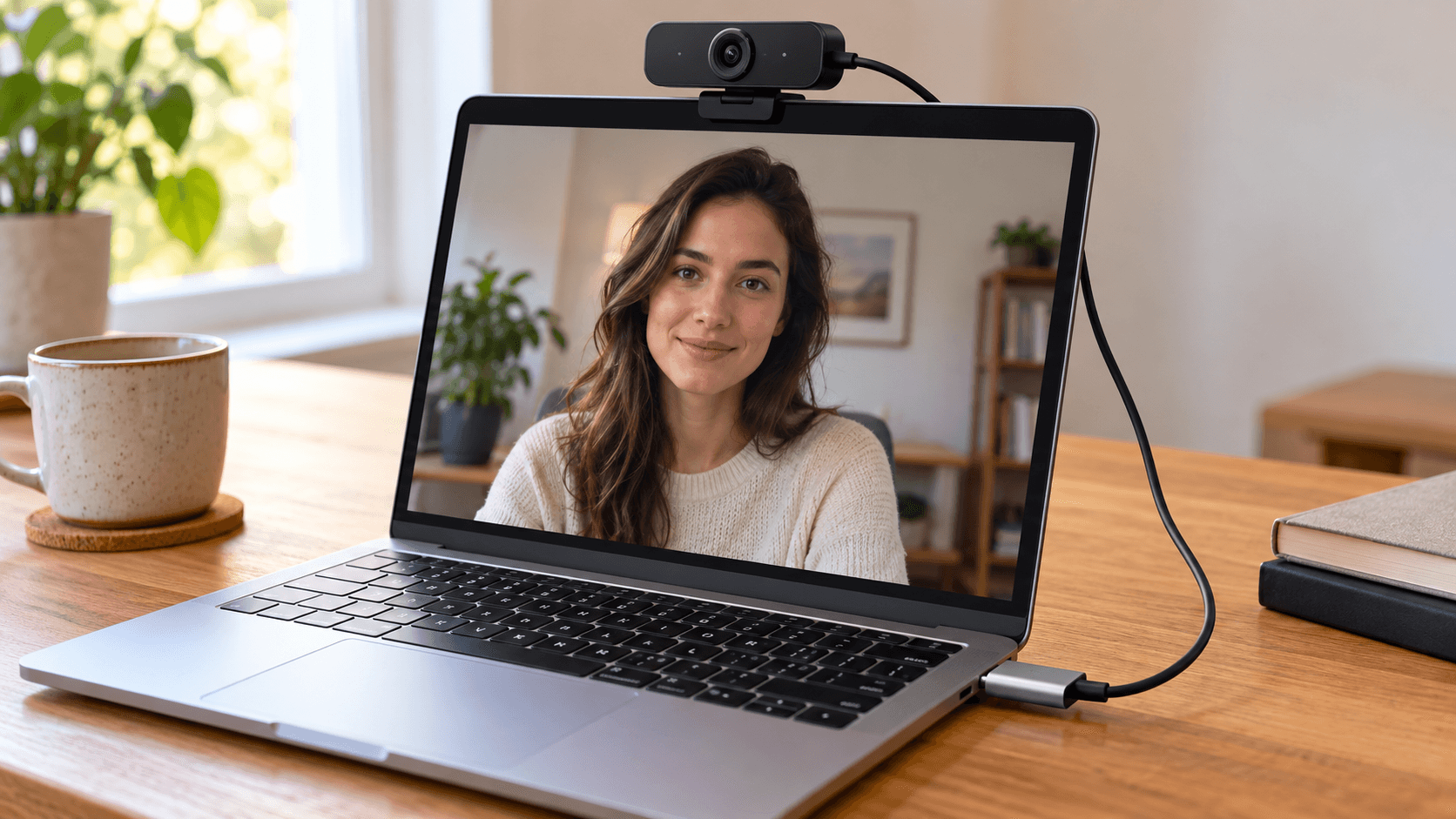
How to Use an External Webcam With a Mac

Oct 10, 2026

How to Use an External Webcam With a Mac

How to Blur Your Background in Google Meet

Oct 2, 2026

How to Blur Your Background in Google Meet

Google Meet Camera Not Working? How to Fix It

Oct 2, 2026

Google Meet Camera Not Working? How to Fix It

Google Meet Filters on Mac: Effects, Touch-Up, and Beauty Filters

Sep 26, 2026

Google Meet Filters on Mac: Effects, Touch-Up, and Beauty Filters

FaceTime Filters on Mac: How to Add Effects and Beauty Filters

Apr 5, 2025

FaceTime Filters on Mac: How to Add Effects and Beauty Filters

How to Use Camera Filters in Google Meet on Safari

Sep 9, 2023

How to Use Camera Filters in Google Meet on Safari

Mac Portrait Mode in Google Meet on Safari

Sep 17, 2023

Mac Portrait Mode in Google Meet on Safari

How to Improve Your MacBook Camera Quality

Oct 10, 2026

How to Improve Your MacBook Camera Quality

How to Protect Family Privacy During Video Calls

Aug 22, 2023

How to Protect Family Privacy During Video Calls

How to Look Good on FaceTime on a Mac, Without Extra Lighting

Sep 26, 2026

How to Look Good on FaceTime on a Mac, Without Extra Lighting

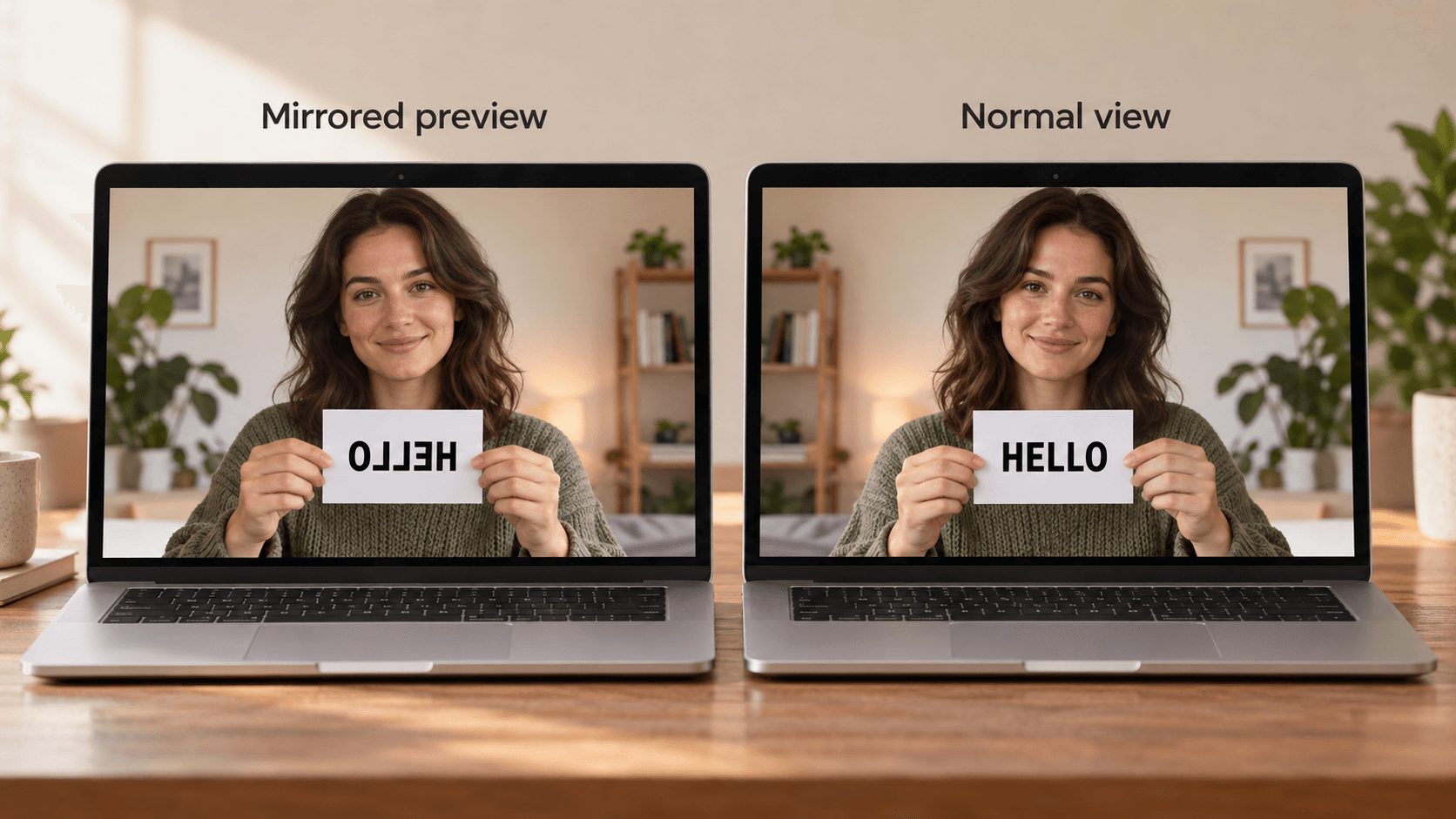
How to Mirror or Flip Your Camera on a Mac

Oct 10, 2026

How to Mirror or Flip Your Camera on a Mac

How to Take a Picture on a Mac With the Camera

Oct 2, 2026

How to Take a Picture on a Mac With the Camera

How to Stop Google Meet From Zooming In on Your Face

May 30, 2025

How to Stop Google Meet From Zooming In on Your Face

How to Turn Off Center Stage on a Mac

Oct 2, 2026

How to Turn Off Center Stage on a Mac

Continuity Camera: How to Use Your iPhone as a Mac Webcam

Sep 26, 2026

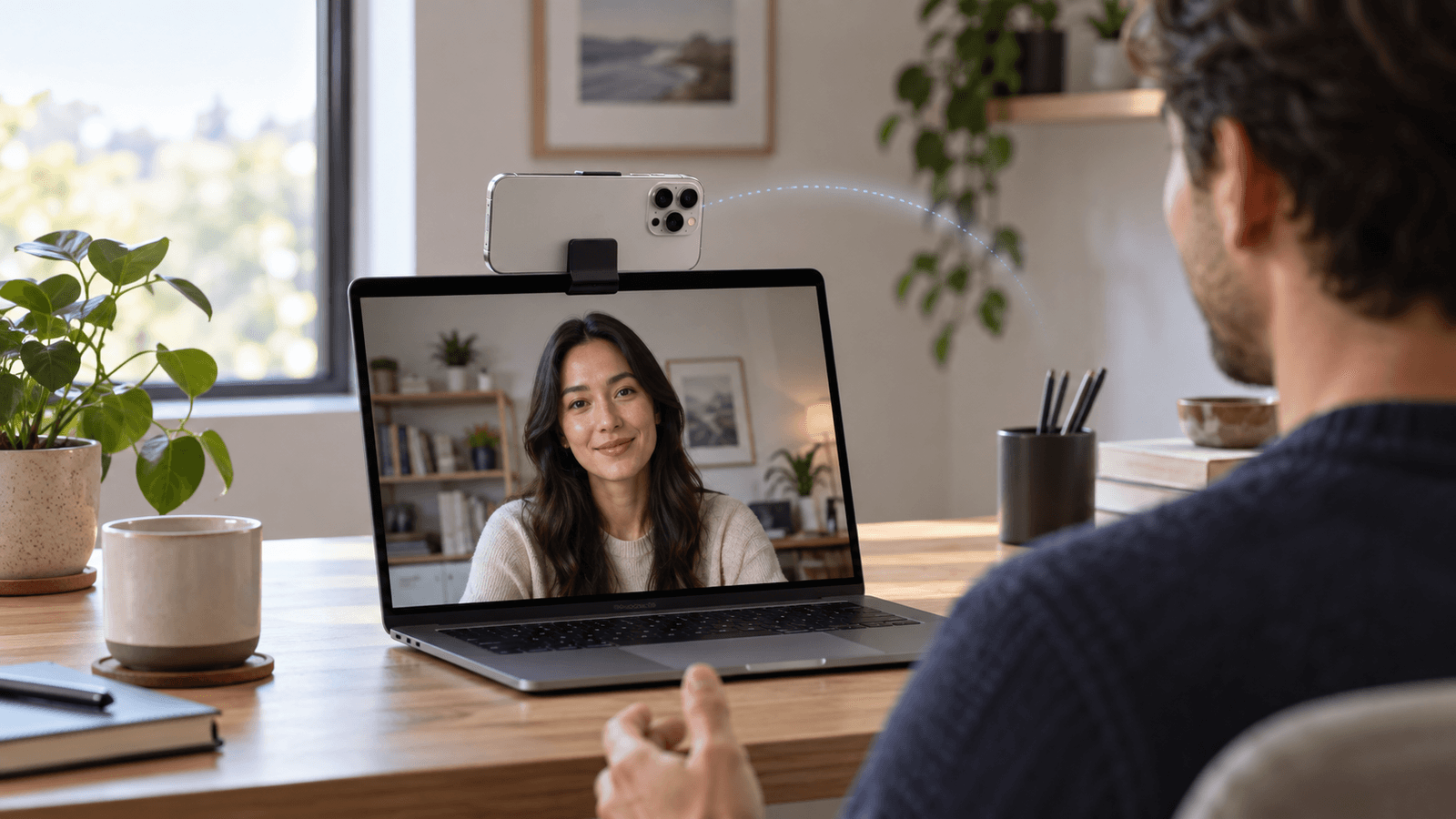
Continuity Camera: How to Use Your iPhone as a Mac Webcam

Logitech Webcam on Mac: Which Software to Use and How to Adjust It

Oct 10, 2026

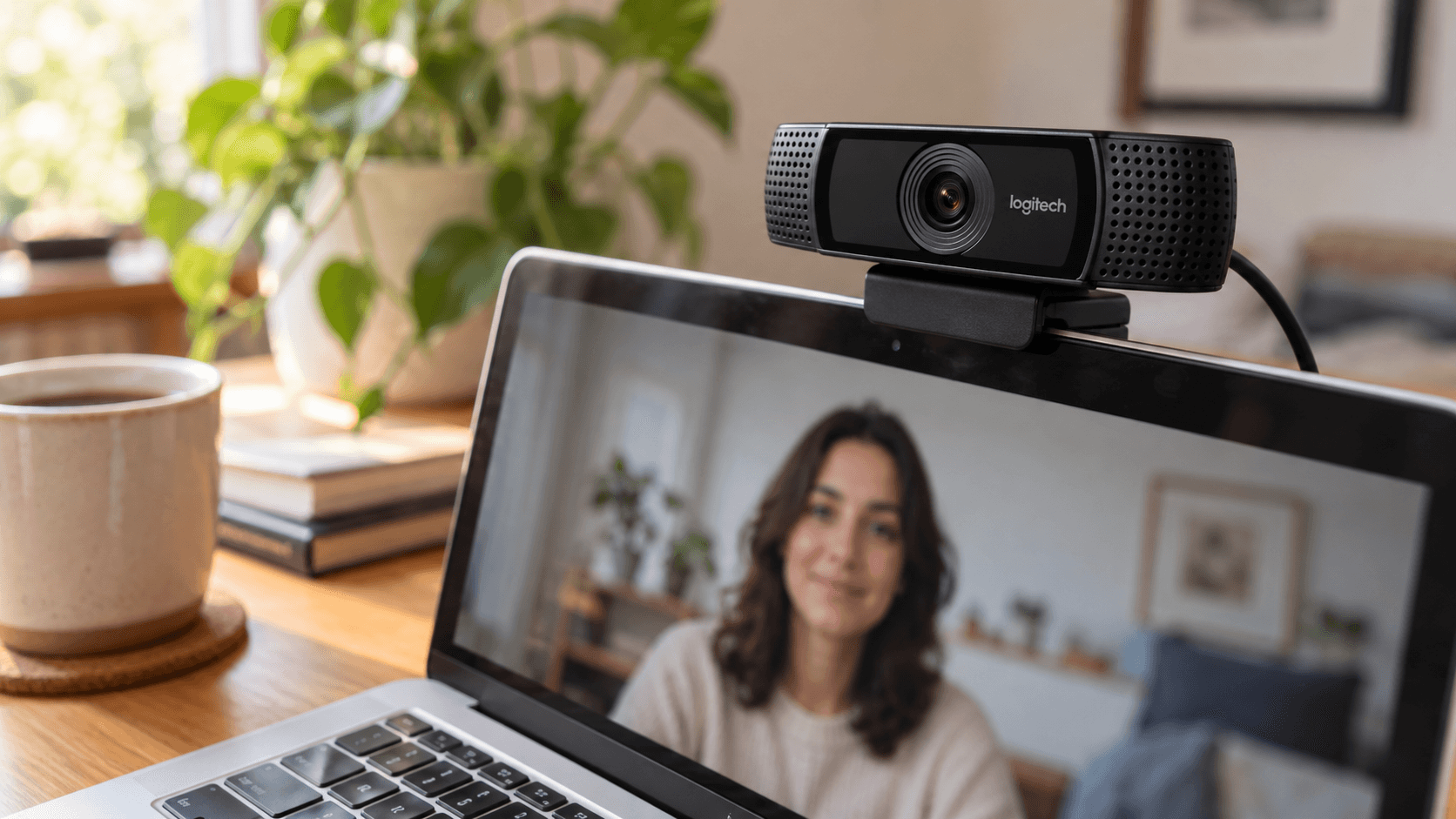
Logitech Webcam on Mac: Which Software to Use and How to Adjust It

Mac Camera Not Working? How to Fix It

Oct 2, 2026

Mac Camera Not Working? How to Fix It

Mac Camera and Webcam Settings: What You Can Adjust and Where

Sep 26, 2026

Mac Camera and Webcam Settings: What You Can Adjust and Where

Microsoft Teams Filters on Mac: Video Effects, Soft Focus, and Beauty Filters

Sep 26, 2026

Microsoft Teams Filters on Mac: Video Effects, Soft Focus, and Beauty Filters

OBS Beauty Filter on Mac: How to Smooth Skin in OBS Studio

Sep 26, 2026

OBS Beauty Filter on Mac: How to Smooth Skin in OBS Studio

How to Stream More Privately With a Virtual Camera

How to Stream More Privately With a Virtual Camera

Xamera Installation Guide for macOS

Mar 1, 2026

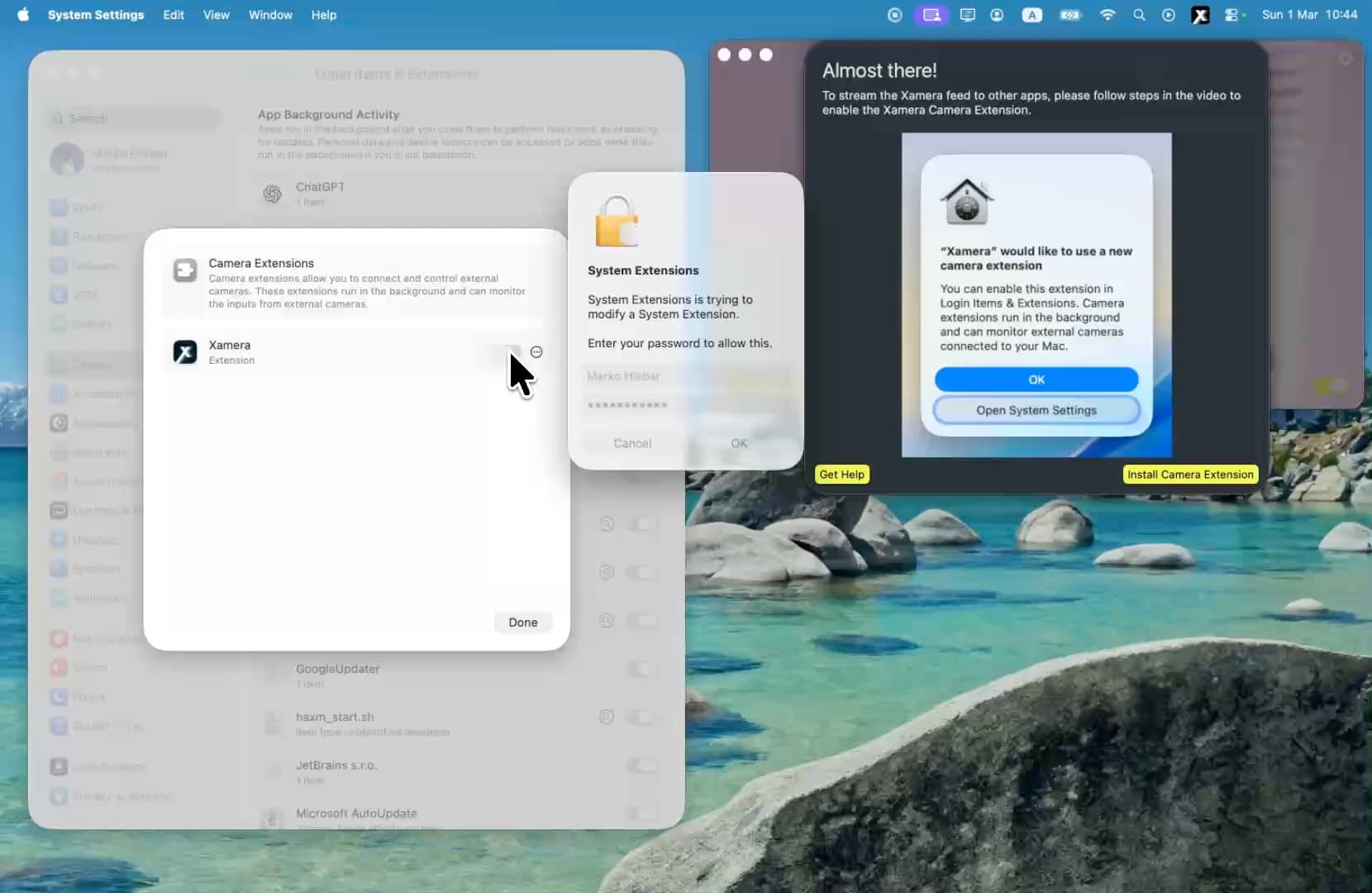
Xamera Installation Guide for macOS

Zoom Filters on Mac: Video Filters, Touch Up, and Beauty Filters

Sep 26, 2026

Zoom Filters on Mac: Video Filters, Touch Up, and Beauty Filters